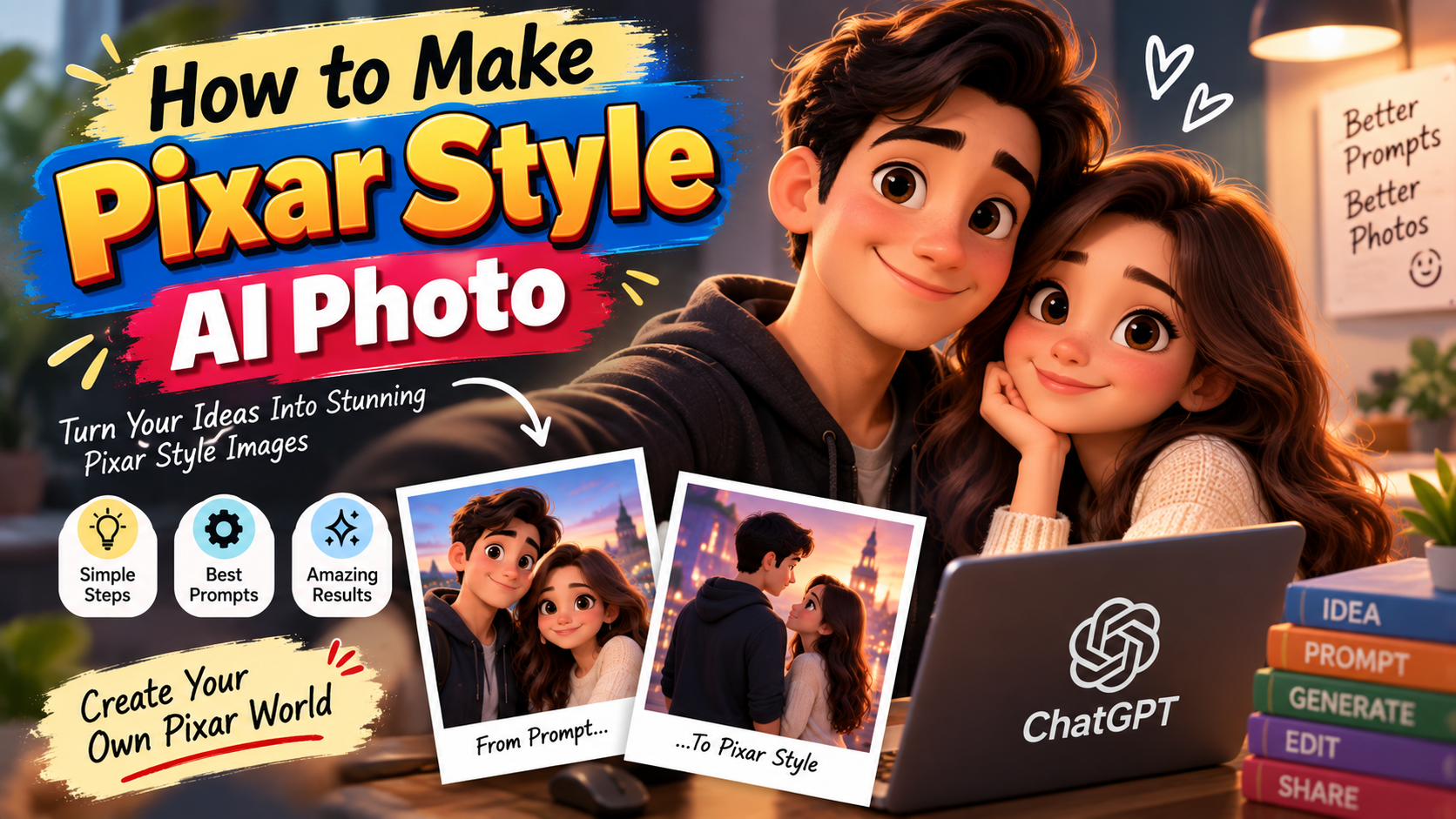
Pixar style has a clear look. Soft rounded shapes, expressive faces, clean lighting, rich but not overdone colors, and a sense that the characters could exist in a 3D animated world. When people try to get that result from AI tools, the images often come out too realistic, too plastic, or just vaguely cartoonish. The difference usually sits in the prompt.
This guide shows how to write prompts that push AI image tools toward a Pixar-like result. It works with most current generators, including Midjourney, Flux, and similar models. The focus is on practical wording that actually changes the output.
What Pixar Style Actually Looks Like
Before writing prompts, it helps to know the main visual traits.
Characters tend to have slightly exaggerated but still believable proportions. Eyes are larger and more expressive than real life. Skin and surfaces look smooth but not shiny plastic. Lighting is soft and directional, often with a gentle glow. Colors are vibrant yet controlled. Backgrounds feel designed rather than photorealistic. The overall image has a polished 3D animation quality without looking like a screenshot from an actual Pixar film.
If your prompt only says “Pixar style,” the model often gives a generic cartoon. Adding the specific traits above produces better results.
Core Phrases That Help
Certain words and short phrases consistently move the image in the right direction.
Useful style anchors:
- Pixar style
- 3D animated
- stylized 3D character
- smooth surfaces
- expressive eyes
- soft cinematic lighting
- vibrant but natural colors
- clean design
- rendered in the style of a Pixar movie
You do not need all of them at once. Two or three strong ones are usually enough. Putting “Pixar style, 3D animated” near the beginning of the prompt often works better than burying it at the end.
Building a Basic Prompt
A solid structure looks like this:
Subject + key Pixar traits + pose or action + setting + lighting + technical notes
Example for a single character:
“Young girl with large expressive eyes and soft rounded features, Pixar style, 3D animated, standing in a sunny garden, gentle smile, soft cinematic lighting, smooth surfaces, vibrant colors”
Example for a couple or group:
“Couple in their 30s with stylized 3D features, large expressive eyes, Pixar style, sitting together on a park bench, soft warm lighting, clean design, smooth rendering”
Keep the description of the people relatively simple. Over-describing facial details can push the image toward realism or uncanny results.
Important Details That Improve the Look
Eyes and expression
Pixar characters are very readable through their eyes and small facial movements. Adding “large expressive eyes” or “warm friendly expression” helps. Avoid flat or neutral faces if you want the classic feel.
Shapes and proportions
Words like “soft rounded shapes,” “slightly stylized proportions,” or “appealing character design” encourage the softer, more designed look instead of realistic anatomy.
Lighting
Hard or dramatic lighting often breaks the style. Soft, even, or gently directional light works better. Phrases such as “soft cinematic lighting,” “warm ambient light,” or “gentle key light” are reliable.
Surface quality
“Smooth surfaces,” “clean materials,” and “polished 3D render” reduce the rough or overly detailed textures that can appear in AI outputs.
Color
“Vibrant but controlled colors” or “rich saturated colors” helps avoid both dull and neon results.
Full Example Prompts
Single character, outdoor:
“Boy around 10 years old with large expressive eyes and soft rounded face, Pixar style 3D animated, standing on a grassy hill, small smile, soft daylight, smooth surfaces, clean design, vibrant natural colors”
Adult character, indoor:
“Woman in her 40s with stylized features and warm expression, Pixar style, sitting at a wooden table in a cozy kitchen, soft window light, smooth rendering, appealing character design”
Two characters together:
“Father and young daughter with Pixar style 3D features, large expressive eyes, walking hand in hand through a light forest, soft filtered sunlight, smooth surfaces, clean and colorful”
Object or environment focused:
“Cozy living room interior in Pixar style, soft rounded furniture, warm lighting, clean 3D render, inviting atmosphere, vibrant but soft colors”
You can swap the subjects and keep the style language mostly the same.
Common Problems and Fixes
The image looks too realistic.
Add stronger style anchors early in the prompt: “Pixar style, 3D animated, stylized character.” Reduce realistic descriptors like “photorealistic skin” or “detailed pores.”
The characters look plastic or cheap.
Include “smooth surfaces” and “high quality 3D render.” Avoid words that suggest plastic or toy-like materials unless you want that.
Faces feel blank.
Add specific expression language: “gentle smile,” “curious expression,” “warm eyes.” Large expressive eyes also help.
Colors are either dull or oversaturated.
Use “vibrant but natural colors” or “rich controlled palette.”
Background fights the characters.
Keep background descriptions simple and matching in style. “Soft blurred background” or “clean simple environment” often works better than highly detailed scenes.
Extra Techniques That Help
Some tools respond well to references like “in the style of Pixar Animation Studios” or “modern Pixar character design.” Others do better with pure descriptive language. Testing both approaches on your specific tool is useful.
If the model supports weighted terms or parameters, you can gently increase the strength of the style phrases. Even without that, placing the style words near the front of the prompt usually gives them more influence.
For consistent characters across multiple images, lock the core description. Write the character details once and reuse them while only changing pose, setting, or expression.
Negative ideas can help on tools that accept them. Things to avoid might include “photorealistic, grotesque, ugly, deformed hands, extra fingers, blurry.”
A Simple Working Process
- Decide the main subject and rough scene.
- Write a basic prompt with clear Pixar style language.
- Generate a few versions.
- Note what is working and what is not (eyes, lighting, overall style).
- Adjust one or two elements at a time and generate again.
Small changes are easier to control than rewriting the entire prompt every time.
Final Notes
Getting a convincing Pixar style out of AI tools is mostly about repeating the right visual cues. Soft shapes, expressive eyes, clean lighting, smooth surfaces, and controlled color do most of the work. Once those elements are present in the prompt, the model has a much clearer target.
The prompts do not need to be long or complicated. Clear and consistent language usually beats long lists of style words. With a bit of practice, you can move from generic cartoon results to images that feel closer to the polished 3D animation look people associate with Pixar.